Offers: A Guide for Publishers
Offers let you propose specific services and a price to a submitter within an existing submission or pitch. You can start from a Call for Work option or create a custom offer, then send one offer or several alternatives with a message.
For example, you might offer an interview, a cover placement, or a package that includes social media promotion. The submitter can review the terms and choose whether to proceed. Offers can be free or paid.
Offers must be enabled for your publisher account. If you cannot find Add Offer, check the guidance at the end of this article.
Screenshots use a demo submission. Names, prices, and dates are examples.
Create an Offer
- Open your publisher Dashboard and the relevant submission or pitch.
- Scroll to the Message section, then select Add Offer.
- Choose Use Template on an available Call for Work option, or choose Create Custom Offer to start from scratch.
- Review and complete the offer’s title, description, price, included services, and dates.
- Select Add Offer to attach the draft to your message.
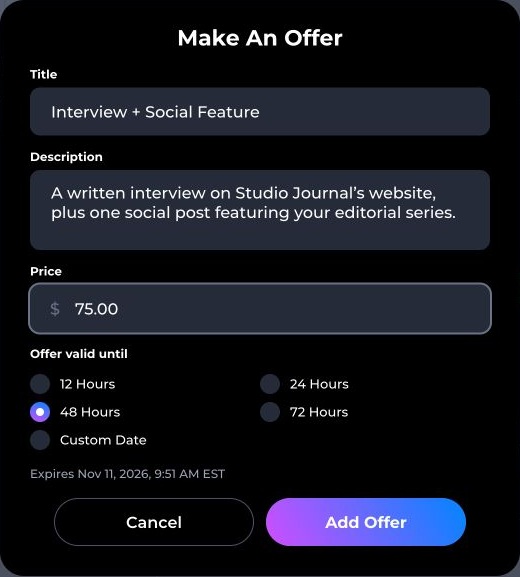
Enter the offer’s title, description, and price, then choose how long the submitter has to respond.
Using a template gives you a starting point for this individual offer. You can adjust its details before sending. It does not edit the original Call for Work option.
Adding an offer to the composer does not send it. You can still edit or remove the attached draft before sending your message.
Set Clear Terms and Dates
- Title: Give the offer a clear name that describes the opportunity.
- Description: Explain exactly what the submitter will receive and any materials or coordination you need from them.
- Price: Set the amount for this offer, or use a free offer. The submitter sees any applicable Kavyar service fee and the total at checkout. An offer payment is separate from the original submission payment.
- Includes: Select the services you will provide. Add or remove features to match the actual agreement.
- Page Count: If this field appears for an interview offer, enter the expected page count.
- Offer valid until: Choose 12, 24, 48, or 72 hours, or a custom date. The default is 48 hours. Hour-based deadlines start when you send the message.
- Expected Fulfillment Date: Optionally specify when you expect to deliver the services. Review any date filled from the Call for Work before sending.
The expiration deadline controls how long the submitter can respond. The fulfillment date describes when you expect to deliver. Use dates you can reasonably meet.
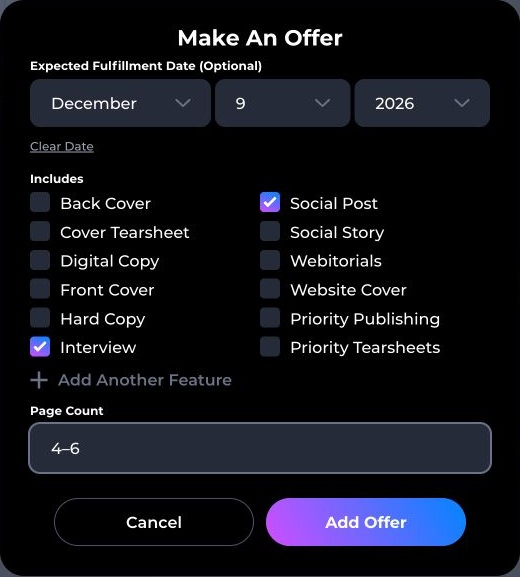
Scroll down to set an expected fulfillment date and choose the included services. Select Add Offer to attach the draft to your message.
Send One Offer or Several Alternatives
- Write a message explaining the opportunity. A message is required when sending offers.
- To provide a choice, use Add Offer again and create a different option. For example, send one offer for an interview and another for an interview plus social promotion.
- Review each attached draft. Use its edit or remove control to make changes.
- Select Send to send the message and attached offers.
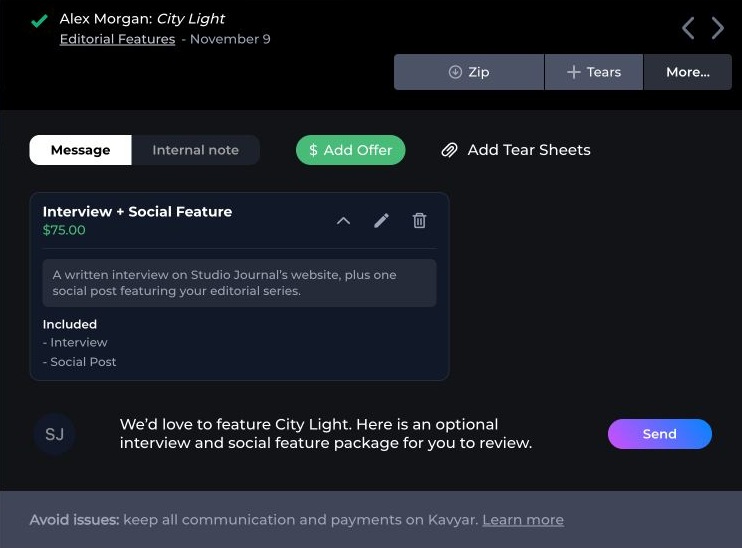
Review the attached offer and write your message before selecting Send. The edit and remove controls are available while the offer is still a draft.
Offers accompany a message to the submitter; they cannot be attached to an internal note. The submitter can compare the options, choose one, or decline them.
A submission can have only one selected or active offer at a time. Once an offer is selected or active, you must resolve it before sending another offer on that submission.
What the Submitter Sees
Your message and offer appear together in the submission conversation. Here is how the same Interview + Social Feature example looks to the submitter.
Reviewing the offer: The offer card shows its title, price, and response deadline. The submitter can open See Details to read your description and included services. Your expected fulfillment date appears as Expected Completion.
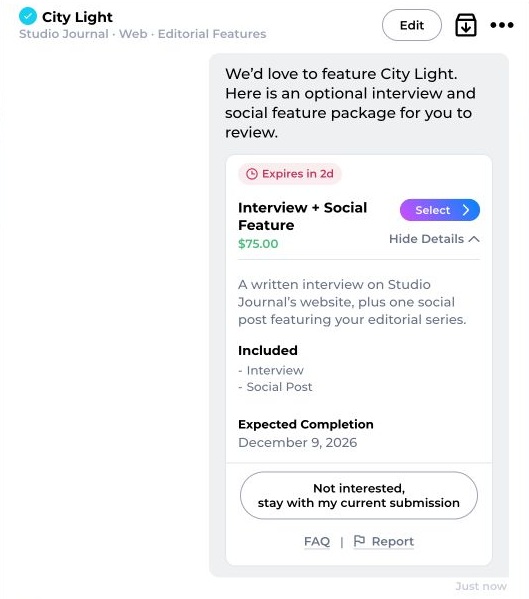
Submitter view: the details you entered become the offer they review. They can select the offer, ask questions in the conversation, or decline.
Accepting and paying: For a paid offer, Select opens a separate checkout with the offer price, any applicable Kavyar service fee, and Total Due. Opening checkout does not complete acceptance; the payment must succeed. For a free offer, the submitter reviews a confirmation and selects Accept Offer.
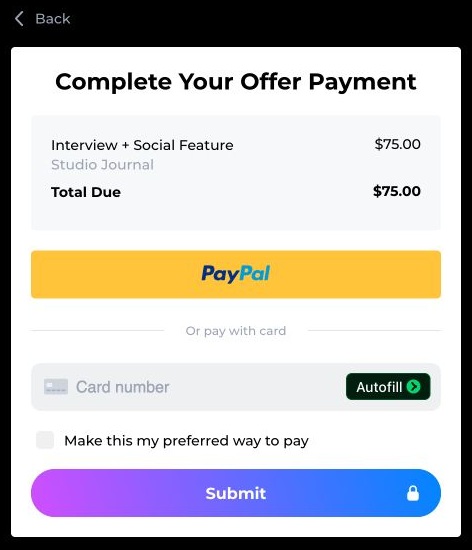
Submitter view: checkout shows the amount due for this offer, separately from any payment for the original submission. This example has no additional service fee.
Declining: The submitter can choose Not interested, stay with my current submission below the offer and confirm. When several offers are grouped in one message, this declines the available offers in that group. Their original submission remains unchanged, and any existing commitment to publish their work still applies.
Track the Submitter’s Response and Payment
Review the offer cards and activity in the submission:
- Offer Sent: The offer is available and waiting for the submitter’s response.
- Selected: The submitter has selected the offer but has not finished the acceptance process. For a paid offer, check that payment is complete before treating it as confirmed.
- Active: The submitter has accepted the offer. The Offer Fulfillment section shows its deliverables and expected completion date.
- Declined, Expired, or Withdrawn: The offer is no longer available to accept.
- Completed or Canceled: The offer has ended. Previous offers remain available in Past Offers.
Paid offers sent through this flow are paid at checkout. Once the submitter completes the required payment, acceptance is confirmed automatically; you do not need to accept the offer a second time. Free offers are confirmed when the submitter accepts them.
In Offer Fulfillment, expand the payment details to see the offer price, submitter service fee, and total paid. Payment Received is shown before publisher fees; it is not the amount of your final payout.
Offer status and submission status are tracked separately. Manage the original submission’s review, publication, and tear sheets as usual.
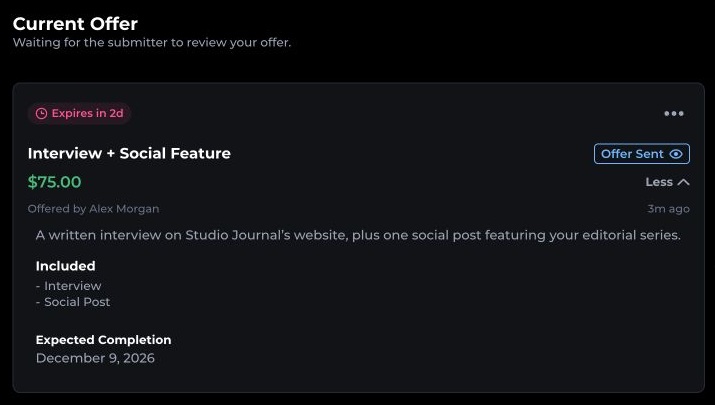
After sending, Current Offer shows the offer’s status and details. Offer Sent means you are still waiting for the submitter’s response.
Deliver the Offer and Mark It Completed
- Use Offer Fulfillment to review the required deliverables and expected completion date.
- Coordinate with the submitter in the submission conversation and provide everything included in the offer.
- When delivery is finished, select Mark Completed and confirm.
Mark Completed cannot be undone. Use it only after you have provided all the included services.
If your schedule changes, open the offer’s three-dot menu and select Change Expected Fulfillment Date. Enter a date and a reason, then select Save Changes. Kavyar sends an automated message to the submitter explaining the change.
Withdraw, Replace, or Cancel an Offer
- Before acceptance: Open the three-dot menu and choose Withdraw Offer. The submitter can no longer respond to it, and their original submission remains unchanged.
- To change a sent offer’s price or included services: Withdraw the pending offer and send a new offer with the correct terms. You can edit attached drafts before sending, but there is no general edit action for those terms after sending.
- After selection or acceptance: Choose Cancel Offer. Add a message if needed, review the confirmation, and confirm. If payment has been collected, the confirmation may say Cancel and Request Refund.
Canceling an offer ends that offer and leaves the initial submission unchanged. Any paid payment starts a refund request automatically; this is a request for processing, not an immediate refund. Check the payment’s refund status before telling the submitter a refund is complete.
Handle a Submitter’s Refund Request
An active paid offer may show Refund Requested or Refund and Cancellation Requested, along with the submitter’s reason. The request does not automatically cancel the offer or refund the payment.
Review the request and respond in the conversation. Use Request Refund to send the payment for Kavyar support’s review, or Cancel and Request Refund when you are ending the offer as well. You can also request a refund through the offer’s three-dot menu where available. Kavyar support handles refund processing.
Why Can’t I Send an Offer?
- Add Offer is missing: Confirm that you are managing the correct publisher and composing a Message. Availability depends on your account’s access, the submission’s status, and its offer preferences. Contact Kavyar support if you need help.
- Another offer is selected or active: Finish or cancel that offer before sending another. Complete an active offer only after delivery is finished.
- A new paid offer is immediately declined: Submitters can automatically decline new paid offers in their profile settings. Free offers and ordinary messages remain available. Respect their preference.
Keep offers optional and honor the terms of the original submission. Declining an additional offer does not remove an existing commitment to publish the submitter’s work. See Policies for Publishers for publisher responsibilities.