Offers: A Guide for Submitters
An offer is a proposal from a publisher for a specific submission or pitch. It might include a cover placement, an interview, social media promotion, or another service. Offers can be free or paid, and you can review the details before deciding whether to proceed.
Accepting an offer is optional. Declining an offer does not cancel your original submission. If the publisher has already agreed to publish your work, they must still honor that agreement.
Screenshots use a demo submission. Names, prices, and dates are examples.
Find and Review an Offer
- Open the offer notification, or open the relevant submission and its conversation with the publisher. If you submit for a business or agency, make sure you are viewing that profile’s submissions.
- Find the offer in the publisher’s message. A publisher may send one offer or several alternatives together.
- Select See Details to review the description and included services. Check the price, the expiration deadline, and the expected fulfillment date, if one is provided.
- If anything is unclear, message the publisher in the submission conversation before accepting.
The expiration deadline is the time you have to respond. The expected fulfillment date is when the publisher expects to deliver what the offer includes. These are separate dates.
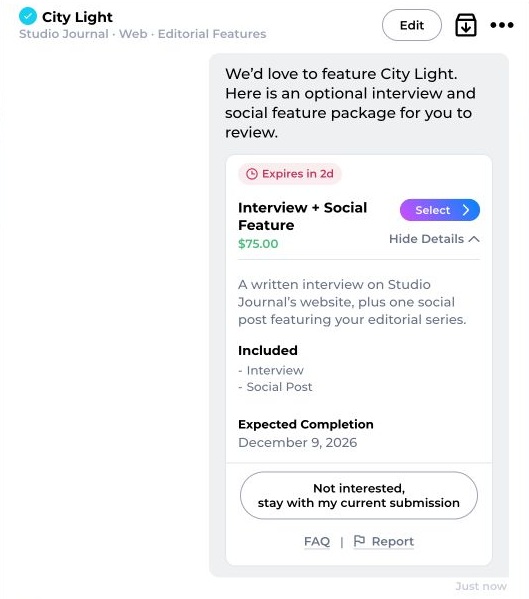
Open See Details to review the offer’s services and expected completion date before selecting it.
Accept a Free or Paid Offer
- Select Select beside the offer you want. Depending on where you open the offer, the action may be labeled Accept Offer.
- For a free offer, review the confirmation and select Accept Offer.
- For a paid offer, continue to checkout. Review the offer price, any Kavyar service fee, and the Total Due, then complete payment.
- Check that the offer is shown as accepted or active. The publisher is notified when acceptance is complete.
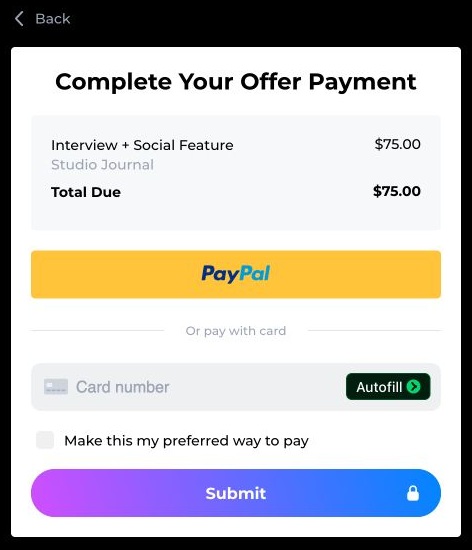
Paid offers open a separate checkout. Review Total Due before completing payment; any applicable service fee is shown here.
Opening a paid offer or reviewing checkout does not complete acceptance. The required payment must succeed. The offer payment is separate from any fees you already paid for your original submission; checkout shows the amount due for this offer.
You can have only one selected or active offer on a submission at a time. If you see a message about another offer, finish accepting it, cancel the unfinished selection, or resolve the active offer with the publisher before choosing another.
If checkout says your payment was recorded but the offer has not been confirmed, contact Kavyar support before trying to pay again.
Decline an Offer
Select Not interested, stay with my current submission below the offer, then confirm. When several offers are presented together, this action declines the available offers in that group.
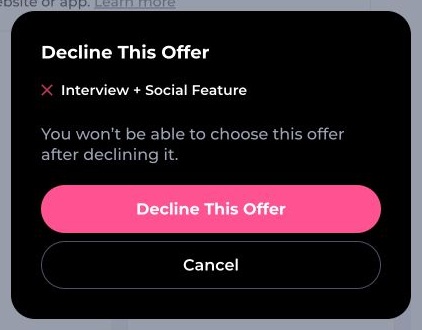
Confirm only if you want to decline. Cancel closes this confirmation and keeps the offer available.
A declined offer cannot be accepted later. If you change your mind, message the publisher to ask whether they can send a new offer.
You can also choose to have new paid offers automatically declined for your profile. Free offers remain available, and changing this preference does not reopen previously declined offers or change existing pending offers. See Managing paid submission offers for the settings steps.
What Happens After You Accept?
The accepted offer appears as your Current offer in the submission details. Use the same conversation to coordinate with the publisher and ask about delivery.
- Selected: The acceptance process is not finished. Follow the available next step or cancel the unfinished selection.
- Accepted or Active: The offer has been accepted and the publisher is responsible for providing the included services.
- Completed: The publisher has marked the offer’s services as delivered.
- Expired: The response deadline passed before the offer was accepted.
- Withdrawn: The publisher removed an offer before acceptance.
- Canceled: The offer has ended without being marked completed. Check its payment or refund information separately.
If an offer expires or is withdrawn, it is no longer available to accept. You can message the publisher to ask about a new offer. Neither receiving an offer nor seeing it marked completed replaces the separate status of your original submission.
Cancel an Unfinished Selection or Request a Refund
If an offer is still Selected, use Cancel This Offer or Cancel Offer where shown to cancel the unfinished selection. Your original submission remains unchanged.
For an active paid offer:
- Open the Current offer in the submission details.
- Open its three-dot menu and choose Request Refund.
- Explain why you are requesting a refund. Choose whether you would also like to cancel the offer, then submit the request.
This sends a request to the publisher. It does not immediately refund the payment or cancel the offer. The offer stays active until the publisher acts on the request. If the publisher cancels a paid offer, a refund request is started automatically; check the refund status for confirmation that it has been processed.
For a free offer, contact the publisher if you need to cancel after acceptance. For a completed offer, use Contact Support if you need help. You can also use Report below an offer or contact Kavyar support if something is wrong.